
- Admissions
-
Academics
- College of Arts & Sciences
- Pamplin School of Business Administration
- School of Education
- Donald P. Shiley School of Engineering
- School of Nursing
- Graduate School
- Library
- Provost
- Registrar
- Center for Entrepreneurship
- Garaventa Center
- Academic Advising
- Early Alert
- Fellowships & Grants
- Honors Program
- Majors & Minors
- Studies Abroad
- University Catalog: The Bulletin
- Air Force ROTC
- Army ROTC
-
Campus Life
- Arts & Culture
- Campus Ministry
- Counseling & Health Center
- Dining
- Housing & Residence Life
- International Student Services
- Moreau Center for Service & Leadership
- Portland, OR
- Public Safety
- Recreational Services
- Shepard Freshman Resource Center
- Student Activities
- Student Affairs
- Student Resources
- Sustainability
- Services
- Athletics
- About UP
- Library
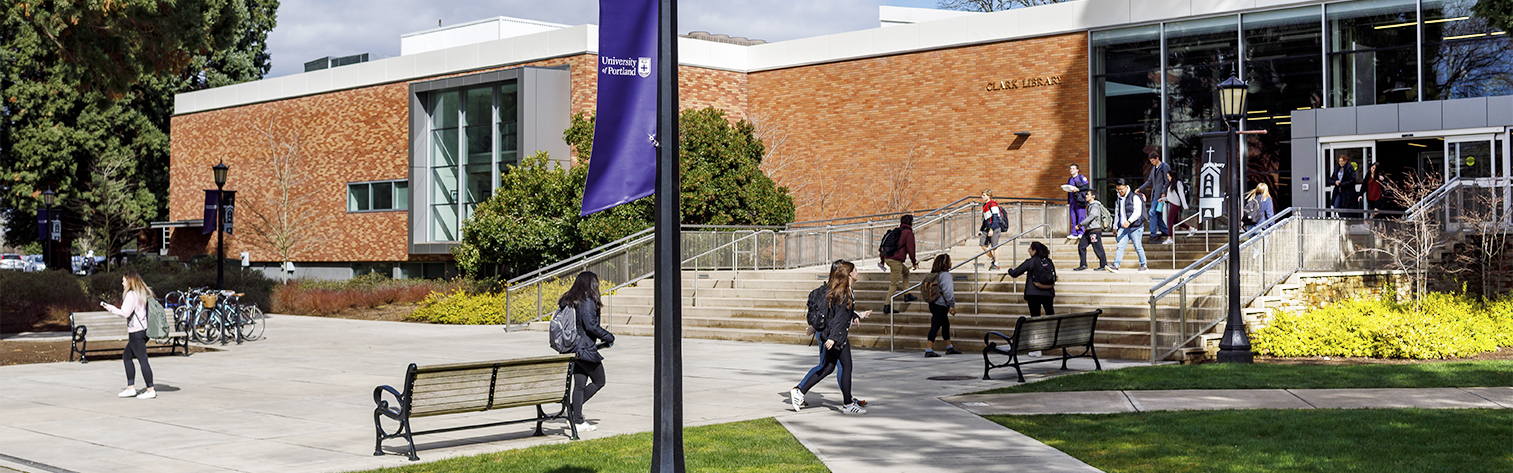
- Wilson W. Clark Memorial Library
- 5000 N Willamette Blvd.
- Portland OR 97203
- 503-943-7111 or 800-841-8261
- fax: 503-943-7491
- library@up.edu
Library: RefWorks FAQ
RefWorks is a web-based citation management system. Users create a personal RefWorks account where they can collect and organize citations and output those citations into papers with pre-formatted in-text citations and bibliographies.
RefWorks is a helpful first-step in creating citations, however it is not 100% accurate. It is essential that you verify citations created by RefWorks against a style manual for that discipline to catch any errors.
RefWorks accounts:
You can create your personal RefWorks account by selecting “Sign up for a New Account” on the RefWorks home page.
Yes. You can create multiple accounts in RefWorks. By creating a new account for your group project, all group members can access the account to add citations or create bibliographies.
Yes, multiple users can access an account simultaneously.
Yes, if you use two different Internet browsers. Login to one account using a browser (such as Internet Explorer), and login to the second account using a different browser (such as Firefox).
RefWorks accounts do not expire, so you will have life-long access to your RefWorks account. However, because UP provides off-campus access to RefWorks through our proxy server, alumni using RefWorks from off-campus will need to use the direct link to RefWorks, and will be prompted to enter the UP group code (contact library@up.edu for the group code).
Yes! RefWorks now allows lifelong access for alumni.
- Using RefWorks from off-campus:
- Alumni will need a group code to access RefWorks; please contact library@up.edu to request the group code.
- Use this direct link to RefWorks, then enter the group code.
- Using RefWorks from on-campus: alumni may use either the direct link to RefWorks (above), or the RefWorks link on the library home page. On-campus users will not be asked to enter a group code.
Alumni may also choose to:
- Use the RefWorks Export feature to backup references as a text file that you can save on a local drive. Since the data is visible in these text files, you don't need RefWorks to retrieve your citations.
- If you are going to another institution that subscribes to RefWorks, use Backup/Restore to save the data from your UP account.
Getting citations into RefWorks:
You may store an unlimited number of citations in your RefWorks account.
Most library databases allow you to export citations directly into RefWorks. For instructions about how to export citations to RefWorks from a specific database, go to Databases A-Z, find the database you are using, and look for the How to Export to RefWorks link, just below the database description.
Additionally, instructions are available for exporting records from the UP-only library catalog to RefWorks.
Alternatively, you can manually enter citations into RefWorks. Choose the “References” menu, then “Add New.” Choose your citation style and the type of item you are citing, then enter the information about the source you wish to cite into the form.
Yes. Follow the instructions for Converting from Other Bibliographic Management Programs.
Yes. You will need to access Google Scholar through the UP web site (using the link on our Databases A-Z page) so that you will be set up to connect to your UP RefWorks account.
First, you need to set up Google Scholar to show the Import to RefWorks link. To learn how, watch the Adding Google Scholar Citations to RefWorks tutorial, or do the following:
- On the Google Scholar home page, choose the Settings link (in the upper right corner).
- Choose Library links (on the left side of the page).
- Search for: University of Portland
- Check all the boxes next to options that include University of Portland.
- Choose the Save button.
Now, you are ready to import citations from Google Scholar to RefWorks. To learn how, watch our Adding Google Scholar Citations to RefWorks: Part Two tutorial. Or, choose the Import into RefWorks links beneath each result in Google Scholar.
Yes; however you will need the RefWorks group code. Please contact library@up.edu, or call the Reference desk at 503-943-7788 to request the group code.
Working with citations:
When you move a citation from a library database to RefWorks, it automatically brings in the citation and other details about the article, but it doesn't bring in the article itself. To access the article, you have two options:
- Beneath each citation in RefWorks there will be a Get it @ UP link. When you select Get it @ UP, if the University of Portland has online access to this article you will be connected directly to the full text. If the University of Portland does not have access to this article, you will see the Get it @ UP screen which will indicate if the article is available in print or online via UP.
- You may also choose to upload a PDF of an article to your RefWorks account. First, download the PDF of the article to your computer. In RefWorks, find the citation, and choose the Edit icon to edit the citation. Next to Attachments, choose the Browse button, find the PDF on your computer, and choose Open. The PDF will then be added to your RefWorks account. To access the PDF from RefWorks, find the citation, choose the Edit link, and in the Attachments area you will see a thumbnail and a link to your PDF.
Note: Your RefWorks account provides up to 100Mb of storage for PDFs. The maximum size of any individual PDF is 20 Mb.
Write-n-Cite:
Write-n-Cite is a program that works as a bridge between your word processor (such as Microsoft Word) and RefWorks. Write-n-Cite III acts as a standalone application that works in tandem with Microsoft Word. Write-n-Cite version 4 is fully integrated into Microsoft Word as a RefWorks tab.
As you write your paper, use Write-n-Cite to insert in-text (parenthetical) citations or footnotes. When you are finished writing your paper, tell Write-n-Cite to create a pre-formatted bibliography of all the citations that you used throughout your paper.
To download Write-n-Cite, login to your RefWorks account, then from the Tools menu, choose Write-n-Cite. You will then see options for downloading Write-n-Cite for Windows or Mac. You will also see a login code; copy this code and save it for later; you will need it after you have installed Write-n-Cite (see FAQ #20 below about the Write-n-Cite login code).For more information about downloading Write-n-Cite, see:
- Helpsheet for Write-n-Cite version 4 for Windows: Downloading Write-n-Cite to Your Computer
- RefWorks instructions for: Installing Write-n-Cite for Windows
- RefWorks instructions for: Installing Write-n-Cite for Mac
Download: Microsoft Visual Studio 2010.
If you are using Write-n-Cite III: after installing Write-n-Cite on your computer, you will need to configure it to work from off-campus. To find the instructions, go to the Get Write-n-Cite page, then choosing the Write-n-Cite version 3 for Windows link. Even if you also use this computer on-campus, once you set it up to work from off-campus it will work in either location.
If you are using Write-n-Cite version 4: when you attempt to login to Write-n-Cite you will be asked for either a Login Code or a Group code; these codes will allow you to access Write-n-Cite from off-campus. (See question #20 below for more information about how to get a Login Code.)
If you are being asked for a group code, often there are other solutions for accessing RefWorks which do not require a group code. Try the following tips:
- Make sure you are using UP's link to RefWorks; the link appears on the library home page as well as the Library tab in PilotsUP. Using these link will connect you to UP's subscription to RefWorks.
- If you are using Write-n-Cite III, go to Get Write-n-Cite, choose the Write-n-Cite version 3 for Windows link, and follow the instructions to set up Write-n-Cite to work from off-campus.
- If you are using Write-n-Cite version 4, when you login to Write-n-Cite you will be asked for either a Login Code or a Group Code. You can find your Login Code within your RefWorks account by following these steps:
- Go to the RefWorks web site, and login to your account.
- Choose the Tools menu, then choose Write-n-Cite.
- A window will appear where you can download Write-n-Cite; the Login Code is provided near the bottom of the window.
There are two situations in which a group code might be necessary to use RefWorks:
- Alumni who wish to continue using RefWorks after graduation (see FAQ #8: Can I keep my RefWorks account after I graduate or leave UP?)
- Off-campus users of UP WorldCat who wish to export citations to RefWorks (see FAQ #13: Can I export citations from UP WorldCat to RefWorks from an off-campus computer?)
In either of these cases, please email library@up.edu to request the group code.
Write-n-Cite 4.0 will ask you for either a Login Code or a Group Code when you try to open Write-n-Cite. You can find your Login Code within your online RefWorks account.
- Go to the RefWorks web site, and login to your account.
- Choose the Tools menu, then choose Write-n-Cite.
- A window will appear where you can download Write-n-Cite; the Login Code is provided near the bottom of the window.
Using your word processor, insert a footnote (for example, in Microsoft Word 2007 or 2010 go to the "References" tab and choose the "Insert Footnote" button). Place your cursor in the footnote, then:
- In Write-n-Cite III: open the Write-n-Cite window and choose the “Cite” link.
- In Write-n-Cite version 4, go to the RefWorks tab in Microsoft Word and choose Insert Citation.
Yes. Just open the file you have already created, and add/remove citations or make other edits as needed.
In Write-n-Cite version 3, after you finish editing your paper, create your bibliography again to make sure it includes all of the citations any new citations that you added to your paper.
In Write-n-Cite version 4, any citations that you add to your paper will be automatically added to your bibliography.
Yes. Use either Write-n-Cite III or Write-n-Cite version 4
Yes. You may install either Write-n-Cite III or Write-n-Cite version 4.
Tips for Write-n-Cite version 4:
- Close Microsoft Word before installing Write-n-Cite version 4.
- While installing Write-n-Cite version 4 you may be prompted to download Microsoft Visual Studio 2010.
- See RefWorks' help for Installing Write-n-Cite version 4.
Tips for Write-n-Cite III:
- Word 2010 must be completely installed on the local computer, then the computer must be restarted, before installing Write-n-Cite III.
- The full Microsoft Word 2010 application must be installed. Microsoft now offers a "Click and Run" version of Word 2010 that installs a virtualization handler to your local computer, and then runs the application on the web. Write-n-Cite III is not compatible with the "Click and Run" version of Word 2010.
Yes. Both Write-n-Cite III and Write-n-Cite version 4 are compatible with the Windows Vista operating system and Windows 7.
RefWorks recommends using Write-n-Cite III on Windows 8 computers. To download Write-n-Cite III, login to your RefWorks account, then choose Tools, Write-n-Cite, and select the Previous Versions link beneath the Download button.
Write-n-Cite version 4 is not yet compatible with Windows 8. RefWorks is working on an update to Write-n-Cite version 4 that would be compatible with Windows 8.
Sharing citations:
RefWorks has a feature called RefShare which allows you to easily share your citations with others. To use RefShare:
- First, put your citations into a folder. On the “Folders” menu, choose “Create New Folder.” Enter the name for your folder, and choose “Ok.”
- View your references (from the “View” menu, select “All References” or “Folder” - > “Last Imported.” Check mark the references you wish to add to the folder, then from the “Put in folder” drop-down menu, select the folder you just created.
- From the “Folders” menu, choose “Share Folders.” Choose the “Share Folder” button next to your folder.
- On the “Shared Folder Options” screen, choose the settings for your folder (for example: whether or not to allow viewers to print, export, or post comments about your citations). Viewers will not be able to modify or add citations to your list. Choose the “Save” button.
- Use the “E-mail URL” button to send one or more people the URL for your shared folder.
Common citation style issues:
For the most accurate APA style citations, choose APA 6th – American Psychological Association, 6th Edition as your output style:
- In journal article citations, proper nouns in article titles will not be capitalized. RefWorks will only capitalize the first word in the title and subtitle of the article; you will need to correct this after creating the bibliography.
- Publisher's location should always include city and state; or for cities outside the U.S., city and country. Even well-known cities (such as New York or London) now need to include the city and state/country. RefWorks may not include the state/country in the citation. A sample citation is:
DiGiulio, M., Jackson, D., & Keogh, J. E. (2007). Medical-surgical nursing demystified. New York, NY: McGraw-Hill.
- When using Write-n-Cite, in-text citations by default do not include page numbers. If you are including a direct quote which would require citing a specific page number, you need to insert your in-text citation via Write-n-Cite, then edit the citation to include the page number.
- Using Write-n-Cite III: after inserting your citation, choose the Edit Citation link (in the upper right corner of the Write-n-Cite window). In the Text After box, enter: , p. #, (# is the page number you need to cite; the comma and space is necessary to separate the year of publication from the page number). For multiple pages, enter: , pp. #-#.
- Using Write-n-Cite version 4: after inserting your citation, right-click your citation and select "Edit Citation." In the Suffix, enter: , p. #, (# is the page number you need to cite; the comma and space is necessary to separate the year of publication from the page number). For multiple pages, enter: , pp. #-#.
These are a few common problems with MLA-style citations for online articles created by RefWorks:
- You will need to manually add the database name to your citations.
To do this, view your references, then check mark one or more you wish to edit. Choose the “Global Edit” button. From the drop-down menu, choose “Database,” and in the “Change Field to” box enter the database name (e.g. "MLA International Bibliography"). Choose the “Ok” button. - You may also need to manually add the Retrieved Date to your citations. You can do this by following the process above to Globally Edit your citations; choose "Retrieved Date" from the drop-down menu. Enter the date in the following style: 26 Sept. 2009.
These are a few common problems with Chicago-style citations created by RefWorks:
- When citing a reference work that is arranged alphabetically, such as Anchor Bible Dictionary, the correct format for a footnote is:
Footnote for citing one entry from a work arranged alphabetically:
1. Anchor Bible Dictionary, s.v. “Moses.”
Footnote for citing two (or more) entries from a work arranged alphabetically:
1. Anchor Bible Dictionary, s.vv. “Moses,” “Exodus, Book of.”
RefWorks would incorrectly cite this source as a book chapter. - When citing journal articles, RefWorks usually includes the month and year of publication (07, 2007). According to Chicago style, if an issue number is cited then the month can be omitted.
- For online article citations, RefWorks usually inserts a comma between the page numbers and database URL; according to Chicago style the appropriate punctuation mark is a period.
More help:
Stop by the library in person, send us an email at library@up.edu, use Library Chat, call us at 503-943-7788, or for more in-depth help make an appointment to meet with a librarian.
-
- library@up.edu
- 503-943-7111 or 800-841-8261
- mobile
- Directions & Maps
- 5000 N. Willamette Blvd., Portland, OR 97203-5798
- © 2013 University of Portland, All Rights Reserved